 Writ
Writ
How Writ works
Short, in the order you will meet things. The same facts in more detail live in the repo's docs folder.
Install
Builds for macOS, Windows and Linux are on the download page with their checksums, or from a package manager:
brew trust ibrahemid/writ
brew install --cask ibrahemid/writ/writ
winget install -e --id ibrahemid.Writ
yay -S writ-bin
curl -fsSL https://github.com/ibrahemid/writ/raw/main/install.sh | sh
The first launch asks nothing and opens today's note.
The hotkey
Writ starts hidden and stays running. ⌘⇧Space (Ctrl⇧Space on Windows and Linux) brings the window up over whatever is in front; the same keys put it away. The window comes back where it was, on the tab you were on. Change the key in Settings, Shortcuts. The menu bar is the same on macOS, Windows and Linux.
Where notes live
Every note is a Markdown file in the notes folder, ~/Writ unless you choose another in Settings, Notes. Writ writes the file a second after you stop typing; ⌘S writes it at once. A new tab is a new file, the tab name is the file name, and Delete moves the file to the Trash. Closing a tab keeps the file; the sidebar lists recently closed notes, and search covers every note in the folder.
The folder is watched, so a change made in another program shows up at once. A note with unsaved edits asks before anything is replaced, and a save never overwrites a newer file: the unsaved text is written beside the note as a dated conflict copy instead.
Earlier versions of a note are kept each time it is saved. A run of saves inside ten seconds is one version; versions are kept for thirty days, at most two hundred per note and 250 MB in all, in Writ's own data folder and never inside the notes folder. Revert To puts one back, and the restore itself is kept as a version.
In ~/.writ, writ.db (SQLite) holds the search index, the links, tags and properties read from the files, and window state, never a copy of a note's text. If the database is deleted, the notes are still there.
Search
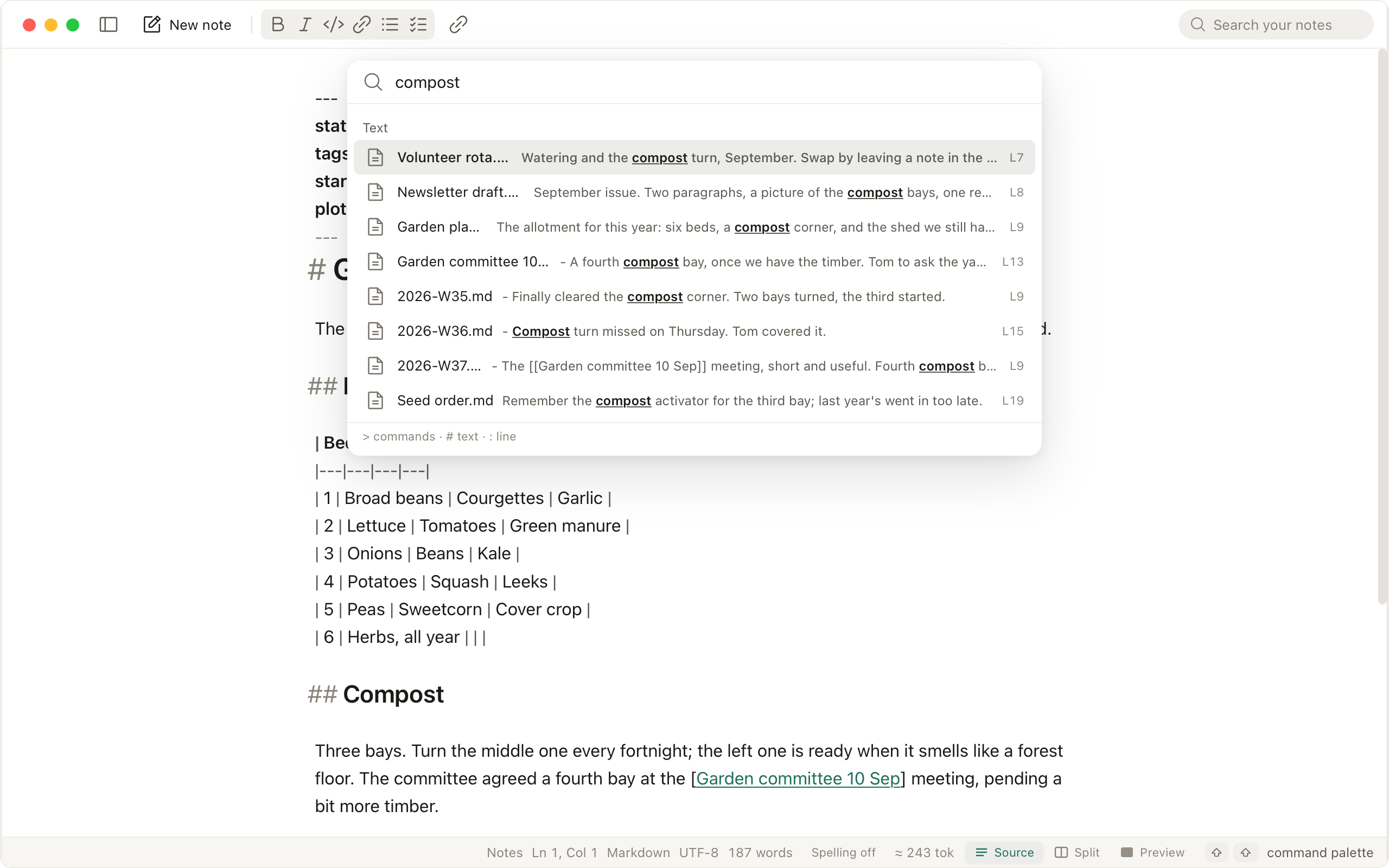
⌘⇧F opens one palette over commands, settings and the text of every note, open or in history. With a folder open it adds the folder's file names and greps file contents on each keystroke. Results are grouped by where they came from; Enter opens the match on its line.
>limits the query to commands#limits it to note contents:42jumps to line 42 of the current note
⌘F finds within the current note, and ⌘⇧O opens a note by name.
Links
Write [[Note]], or [[Folder/Note]] when two notes share a name, and the link opens the note. [[Note#Heading]] opens it at the heading. ⌘⇧\ opens the Connections panel beside the note: the notes that link here, each with the sentence the link sits in, the outline, and the properties from the frontmatter. Renaming a note offers to rewrite the links that point at it. Tags written as #tag in the text or in the frontmatter are listed in the sidebar. Graph, from the palette, draws the notes around the open one; Graph view draws the whole folder, with a search box and a color per folder.
Preview
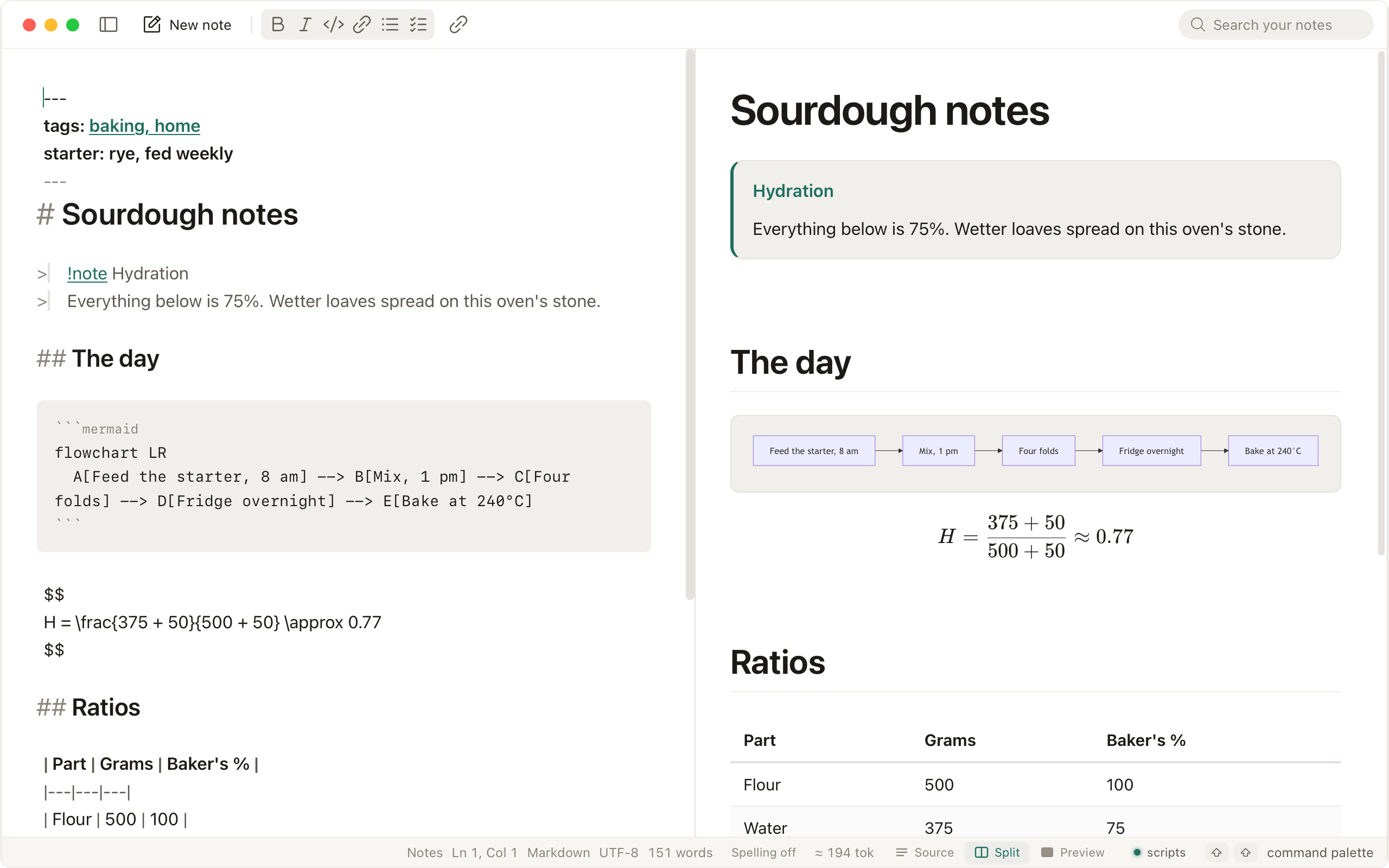
Markdown, HTML, Mermaid diagrams and KaTeX math render in a pane beside the source, from runtimes bundled with the app, offline. Callouts, tables, footnotes and embedded notes render too. The status bar switches between Source, Split and Preview; the two panes scroll together. The preview has no network access: an HTML note cannot load anything from the web, and a link in it names its destination and asks before opening.
Lists continue on Enter, checkboxes toggle on click in either pane, and ⌘B, ⌘I, ⌘K wrap the selection. Code, configs and logs open as text with highlighting for the language; binary files open as hex; very large files open with highlighting off.
Files and folders
Drag a file onto the window, double-click it in Finder once Writ is the default app, or run writ path. Open a folder (Settings, Files, or drag it in) and the sidebar shows its tree; relative links such as [spec](./notes/spec.md) then open inside Writ.
A folder written in Obsidian
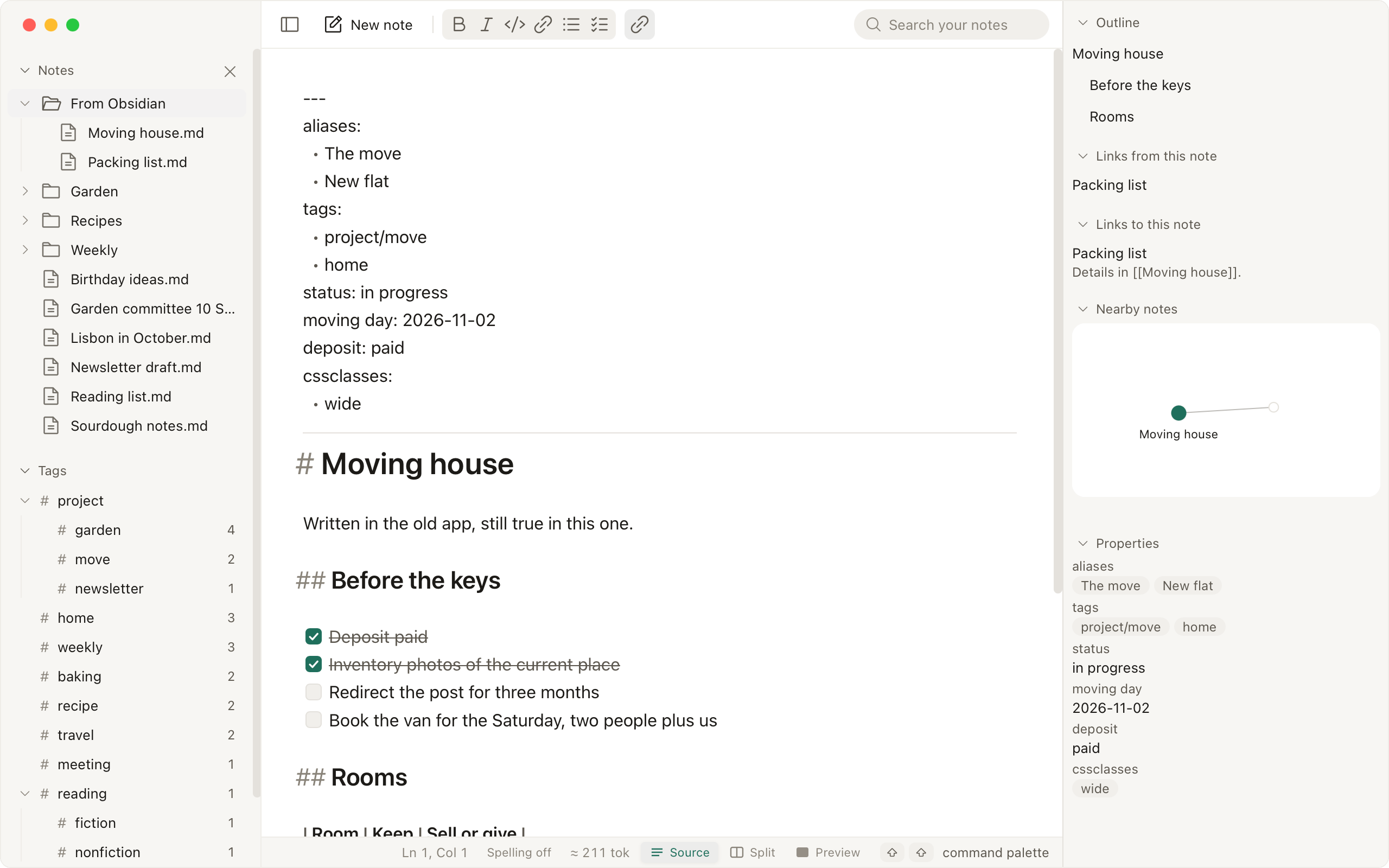
Point Settings, Notes at the folder Obsidian uses and it opens as it is. Links, aliases, properties, tags, callouts and embeds read as written, and both apps keep using the same files. Nothing is copied or converted. The guide lists what carries over and what does not, and Writ next to Obsidian sets the two side by side.
Connected programs
Off by default. Settings, Connected programs turns on the MCP server and shows the command to paste into a client such as Claude Code or Cursor. The first call from a program waits there until you approve it; reading and writing are approved separately. An approved reader can list, search and read notes and their links, backlinks, properties and tags; an approved writer can write, create and rename a note, and nothing can delete one. A write that would overwrite a newer file is refused. Recent activity lists every call without the note's text. The guide walks through the setup.
Watched folder
Point Settings, Advanced, Folder to watch for new files at a folder. Any file that appears there after that moment opens by itself and the window comes forward. Files that were already in the folder are left alone, and more than three arrivals in two seconds collapse into one notice instead of a pile of tabs. Turn off "Bring Writ to the front when a new file arrives" if you want arrivals to stay quiet.
Command line
The writ command opens files in the running app. Install it from Settings, Advanced, Terminal command (macOS asks for an administrator password once to link it into /usr/local/bin).
writ notes.md            # open a file
writ .                   # open the folder
pbpaste | writ           # anything on stdin becomes a note
make test 2>&1 | writ --title tests
Piped text becomes a note in the notes folder, so it stays after the terminal closes.
Default app
Settings, Files has a Make default row for each group: Markdown, plain text and logs, config and data, source code (macOS). macOS keeps the choice per file type; the guide on making Writ the app for .md walks through it.
Spelling
Off by default. Turn it on from the status bar or Settings, Editor. It runs on your machine. Double-click a flagged word to accept a correction, fix every occurrence, or add the word to your dictionary. Code, links and tokens like API are not flagged.
AI
Both features are off by default and share one connection under Settings, AI: a provider, a key and a model. Ollama and LM Studio run on your machine and need no key. Anthropic, OpenAI, Google Gemini, OpenRouter, Groq, DeepSeek, Mistral, xAI, Together and Fireworks take your own key, kept in the system keychain; OpenRouter can also connect from a button that opens your browser. Any other OpenAI-compatible endpoint works by URL. The model list comes from the provider, and Check says whether the host answers. Before anything reaches a host off your machine, Writ asks once, naming the host.
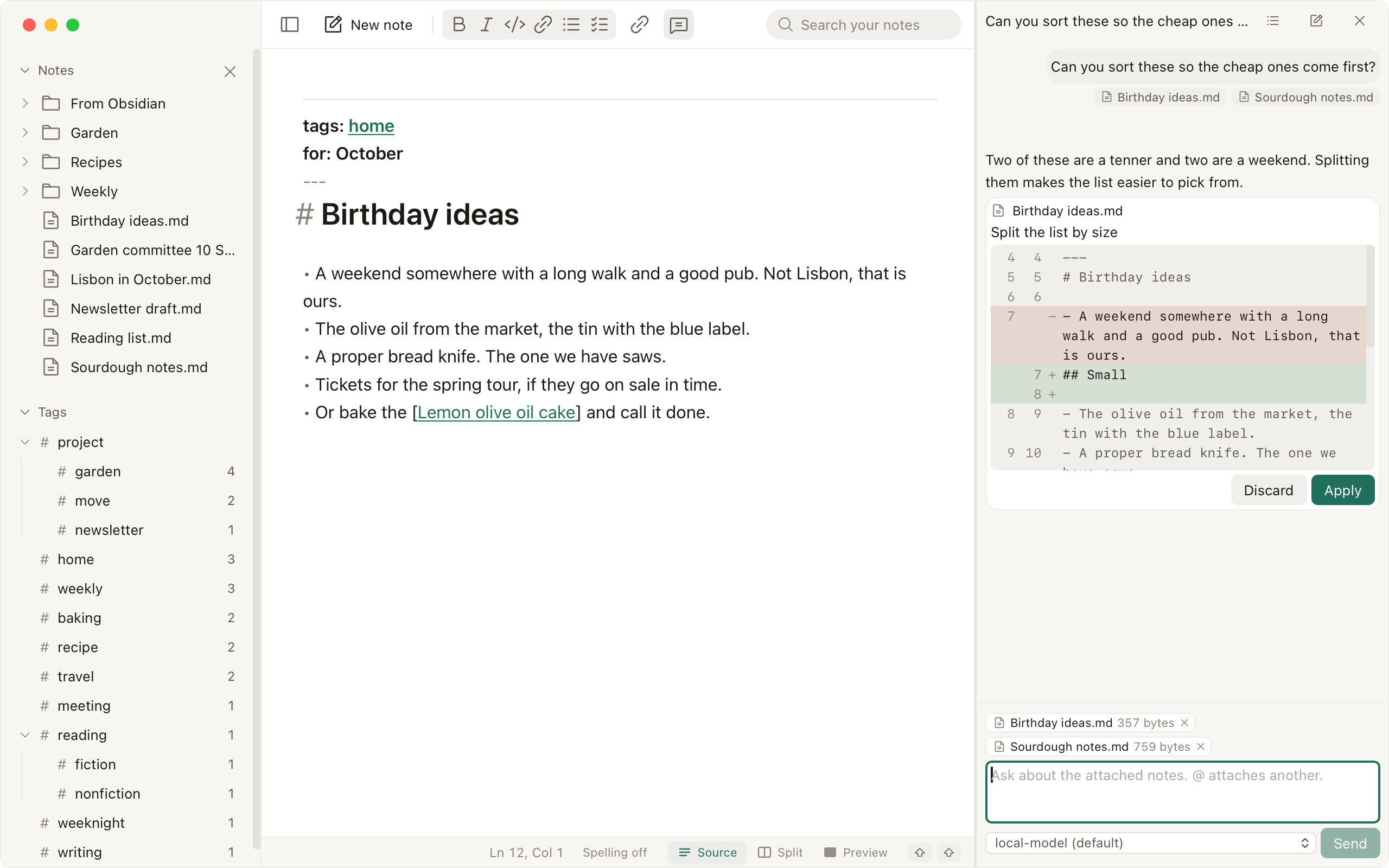
Rewrite. Select text, right-click, Rewrite: proofread, rephrase, polish, improve prompt, or your own instruction. The result shows as a diff you apply or discard. Only the selected text is sent.
Chat. ⌘⇧A opens a pane beside the note with that note attached; type @ to attach any other note. Only attached notes are sent, and the send dialog names the host and the size first. Replies render as Markdown, with a copy button on each code block. When the model proposes an edit, the pane shows it as a diff, and Apply writes the note through the same guarded path as everything else, so a note that changed since the proposal is refused. Conversations are saved under Writ's data folder, never in the notes folder, and the pane lists, renames and deletes them. Stop ends a reply, Retry resends after an error, and editing an earlier message resends from there.
Appearance
Light by default, with six accents to choose from in Settings, Appearance; the dark presets are still there. Interface text size is a setting of its own, and Zoom scales the editor and the rendered pane together.
Shortcuts
Every one of these can be changed in Settings, Shortcuts. macOS keys shown; Windows and Linux use Ctrl for ⌘.
| Bring up or put away the window | ⌘⇧Space |
| Command palette | ⇧⇧ |
| Search everywhere | ⌘⇧F |
| Find in the note | ⌘F |
| New note | ⌘N |
| Open a note by name | ⌘⇧O |
| Close tab | ⌘W |
| Reopen the last closed tab | ⌘⇧T |
| Previous / next tab | ⌘[ |
| Save now | ⌘S |
| Toggle sidebar | ⌘\ |
| Connections panel | ⌘⇧\ |
| Chat pane | ⌘⇧A |
| Settings | ⌘, |
| Zoom in / out | ⌘= |
| Duplicate Line | ⌘D |
| Delete Line | ⌘E |
| Move Line Up | ⇧⌥ArrowUp |
| Move Line Down | ⇧⌥ArrowDown |
| Toggle Comment | ⌘/ |
| Select Line | ⌘L |
| Insert Line Below | ⌘Enter |
| Insert Line Above | ⌘⇧Enter |
| Join Lines | ⌘⇧J |
| Select Next Occurrence | ⌘⇧D |
Config
Everything in Settings is also in ~/.writ/config.toml, including which programs you approved. Logs are in ~/.writ/logs/ and record what the app did and which paths it opened, never the text. The update check runs on start and can be turned off.